How to create and manage a 511 account
INDOT’s traveler information website offers the ability to create a personalized 511 account, customize your favorites list, schedule email and text alerts for your favorite routes and areas.
Tour this featureCreate an account
- Click or tap the account icon in the top-right corner of the 511 website
- Select Sign Up Now
- Enter your Full Name, Email, Password, and Mobile Phone Number (optional)
- If a Mobile Phone Number is entered, a verification code will be sent to the device
- On the next page, you will be asked if you are interested in Commercial Vehicle Information. By toggling this on, Commercial Vehicle info will appear on your map by default whenever you visit the site (read more about that here).
Access account settings
Once you are logged in, click or tap the account icon in the top-right corner to access account settings. There are three tabs in the settings module:
- Profile
- Alerts
Under the Profile tab, you can:
- Update your name
- Update your email address
- Change your password
- Classify yourself as a Commercial Vehicle Driver
- Delete your account
Under the Alerts tab, you can:
- Add or update a mobile phone number (a verification code will be sent)
- Select the priority of alerts you’d like to receive for your favorited routes, places, and custom areas
- Critical - Unplanned road closures and other highest-priority events
- Urgent - Traffic-impacting closures, delays, or construction
- Routine - Warnings and information
- All - All road events
- Select alerts by category. You will be alerted of events that fall into these categories, regardless of priority, in addition to alerts of your selected priority.
- Unplanned traffic events
- Commercial vehicle restrictions
- Winter towing restrictions
- Toggle on or off Emergency Alerts. These are statewide emergency alerts broadcasted by the DOT (e.g. Amber Alerts).
Favorite a camera
Use this feature to save camera view(s) to your favorites list.
Via thumbnail camera view
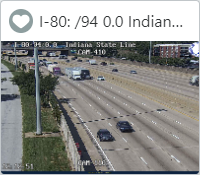
- Click or tap on the heart in the top-left corner of the thumbnail.
- A pop-up will signify that the camera has been saved. It will now be available at the top of your favorites list.
Via enlarged camera view

- Click or tap on a camera thumbnail to view an enlarged camera view (find cameras by activating the Roadside Cameras layers or by clicking on events with nearby cameras).
- A pop-up will signify that the camera has been saved. It will now be available at the top of your favorites list.
- Click or tap on the heart in the bottom-right corner.
- The heart icon will turn green to signify the camera has been saved. It will now be available on your homepage dashboard.
Favorite a place
Use this feature to save a place search (e.g. a city, address, or landmark) to your favorites.
- In the search bar, expand the “Search by” button to search by place ( ).
- Search for a place (e.g. Indianapolis, Indiana, USA)
- Press
Enter ⏎or click search . - Once search results load in the content tray, click or tap the heart icon in the top-left corner.
- A pop up will appear to select the following:
- A) A Display Name for the favorite place
- B) Enable SMS alerts (phone must be verified)
- C) Enable Email alerts (email must be verified)
- D) Schedule days and times to receive alerts
- Once finished, click Create Favorite
- The favorite icon will turn blue and the place will be saved to your favorites list.
Click or tap View Your Profile to return to your dashboard.
Favorite a route
Use this feature to save a custom route search (point A to B) to your favorites.
- In the search bar, expand the “Search by” button to search by route ( ).
- Type a city or address as the starting location. (e.g. 100 N Senate Ave, Indianapolis, IN 46204)
- OR, right-click on the map to Start Route Here or End Route Here
- Press
Enter ⏎or click search . - Once search results load in the content tray, click the heart icon in the top left corner.
- A pop up will appear to select the following:
- A) A Display Name for the favorite place
- B) Enable Email alerts (email must be verified)
- C) Enable SMS alerts (phone must be verified)
- D) Enable Travel Time alerts to receive daily notifications when traffic exceeds X minutes
- E) Schedule days and times to receive alerts
- Once finished, click Create Favorite
- The favorite icon will turn blue and the route will be saved to your favorites list.